01 LISTEN
Listen quietly.
Local transcription and Passive Mode watch for the phrases that matter without making the assistant another participant in the call.
Real-time intelligence that recalls the right context while the conversation is still happening.
SmaranQ is designed around the moment a conversation becomes useful: capture the meeting locally, keep the right project context close, and surface a concise cue without taking over the call.
Local transcription and Passive Mode watch for the phrases that matter without making the assistant another participant in the call.
Project knowledge and previous meeting context stay organized so the right source can come forward when the conversation needs it.
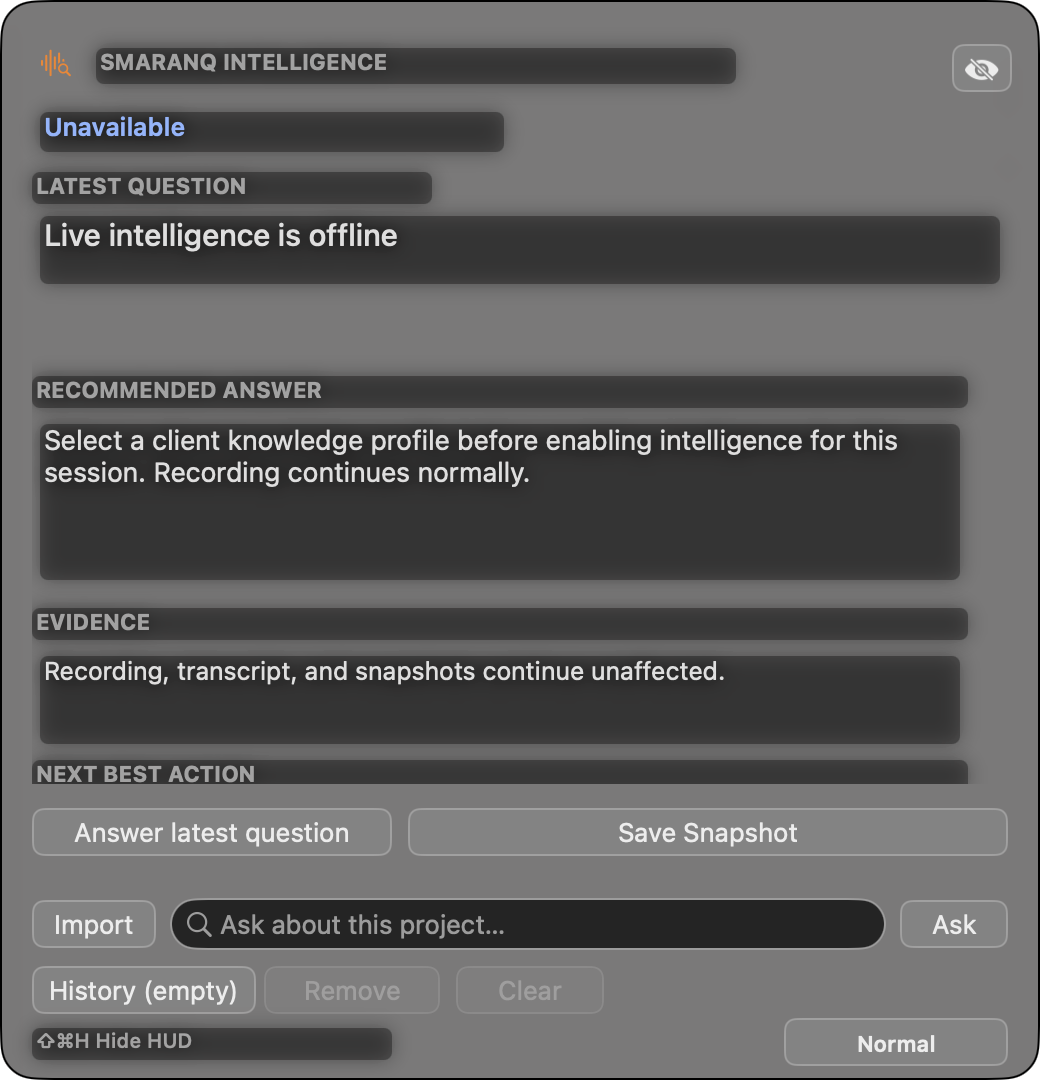
The separate Q HUD keeps controls and intelligence within reach while the meeting continues underneath.
SmaranQ is the product studio behind SmaranQ, our real-time meeting intelligence layer, and Camoscope, our screen-share visibility auditor.
Private, local-first meeting intelligence that recalls relevant context and surfaces concise cues while a conversation is still happening.
Audit your own Mac for windows that remain visible locally but are excluded from capture, then verify the app identity and inspect what is being hidden.
Both products are built around local inspection, explicit macOS permissions, and user-controlled access instead of remote surveillance.
SmaranQ is a private meeting intelligence layer that listens locally, understands what is on your screen, recalls relevant context, and surfaces the right cue while the conversation is still happening.
A compact private HUD surfaces one useful talking point first, with proof and source context when you need more.
Local-first capture and translucent overlays keep the intelligence useful without taking over your screen or joining as another participant.
Bring prior decisions, project knowledge, current-screen context, and conversation history into the exact moment they matter.
A meeting starts before you press Record and stays useful after you stop. Follow the workflow: prepare your project context, capture the conversation, and return to what matters. Scroll to explore: each feature opens as you reach it and folds away as you move on. You can also open any feature yourself. Scroll sideways for more screenshots and upcoming demos.
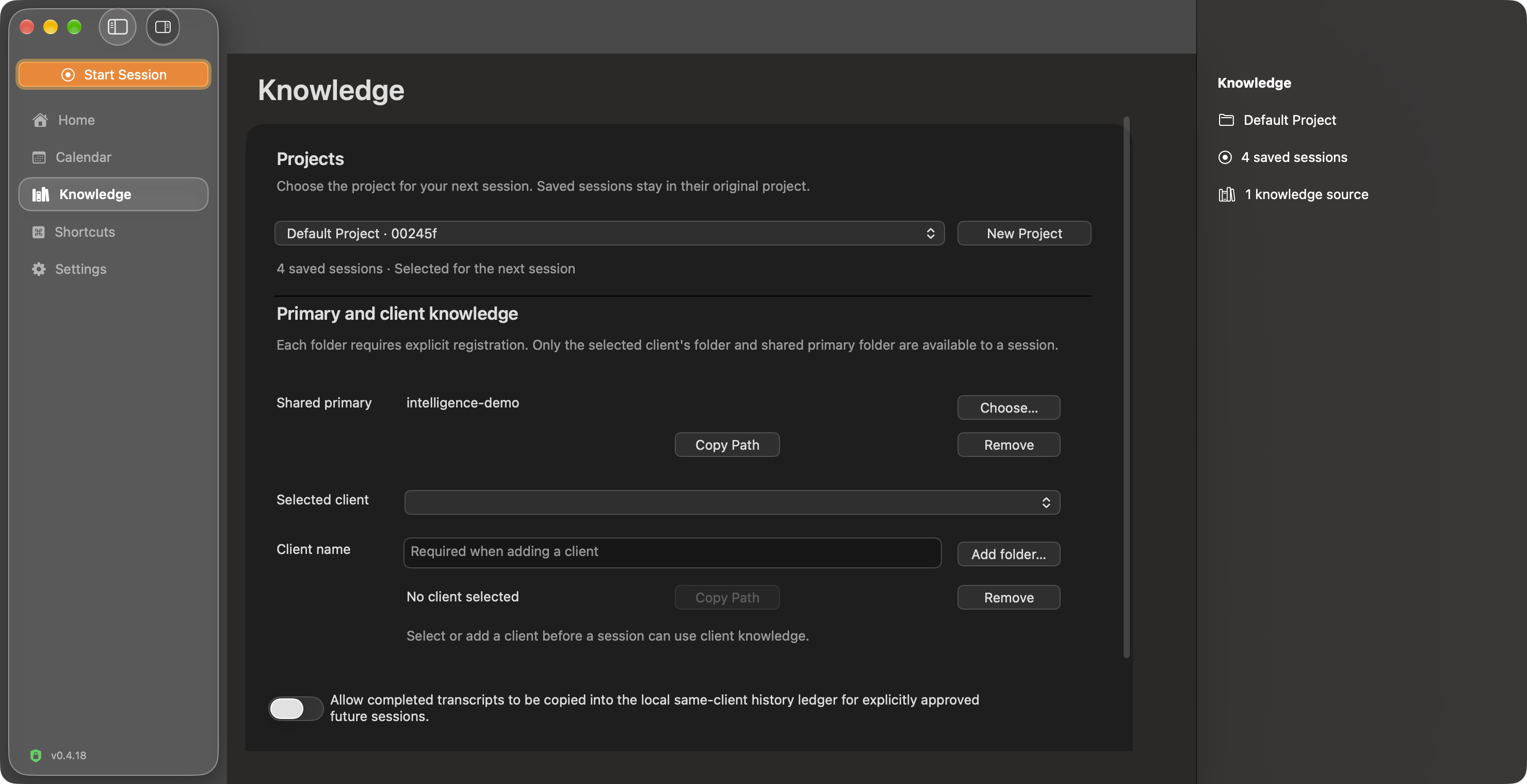
Choose a project and register the shared or client knowledge it needs. That gives the next conversation a defined context, while earlier sessions stay in their original project.
The demo video will appear here once it is recorded and ready.
Swipe or scroll horizontally. With the media strip focused, use the left and right arrow keys.
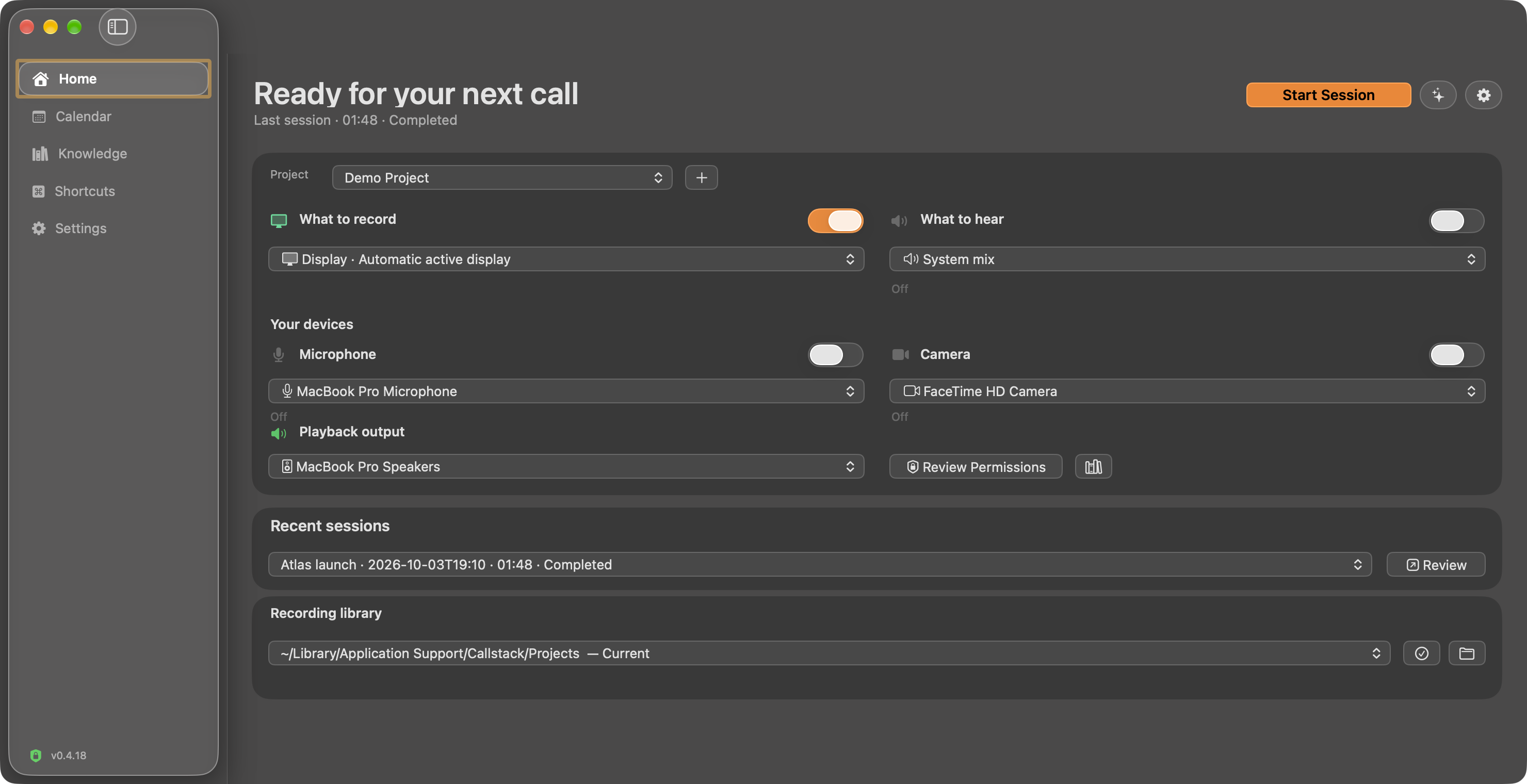
Choose your screen, meeting audio and microphone, then start a session. Local transcription follows the conversation; snapshots and Smart Snip can preserve useful screen context. Optional Q answers use the provider you configure.
The demo video will appear here once it is recorded and ready.
Swipe or scroll horizontally. With the media strip focused, use the left and right arrow keys.
The recording pill keeps session controls nearby; the HUD keeps questions and evidence in a separate panel. This development preview adds one-click Normal and Incognito controls to both. Incognito keeps them visible to you and requests capture exclusion; external capture tools may still show them. Normal allows eligible captures. The published v0.4.18 trial does not yet include this switch.

A product-only recording will appear here when ready.
Swipe or scroll horizontally. With the media strip focused, use the left and right arrow keys.
SmaranQ provides pen, highlighter, arrow and rectangle tools for marking shared screen content. Here, underlines, highlights and an arrow mark our own website during an Atlas demo recording.
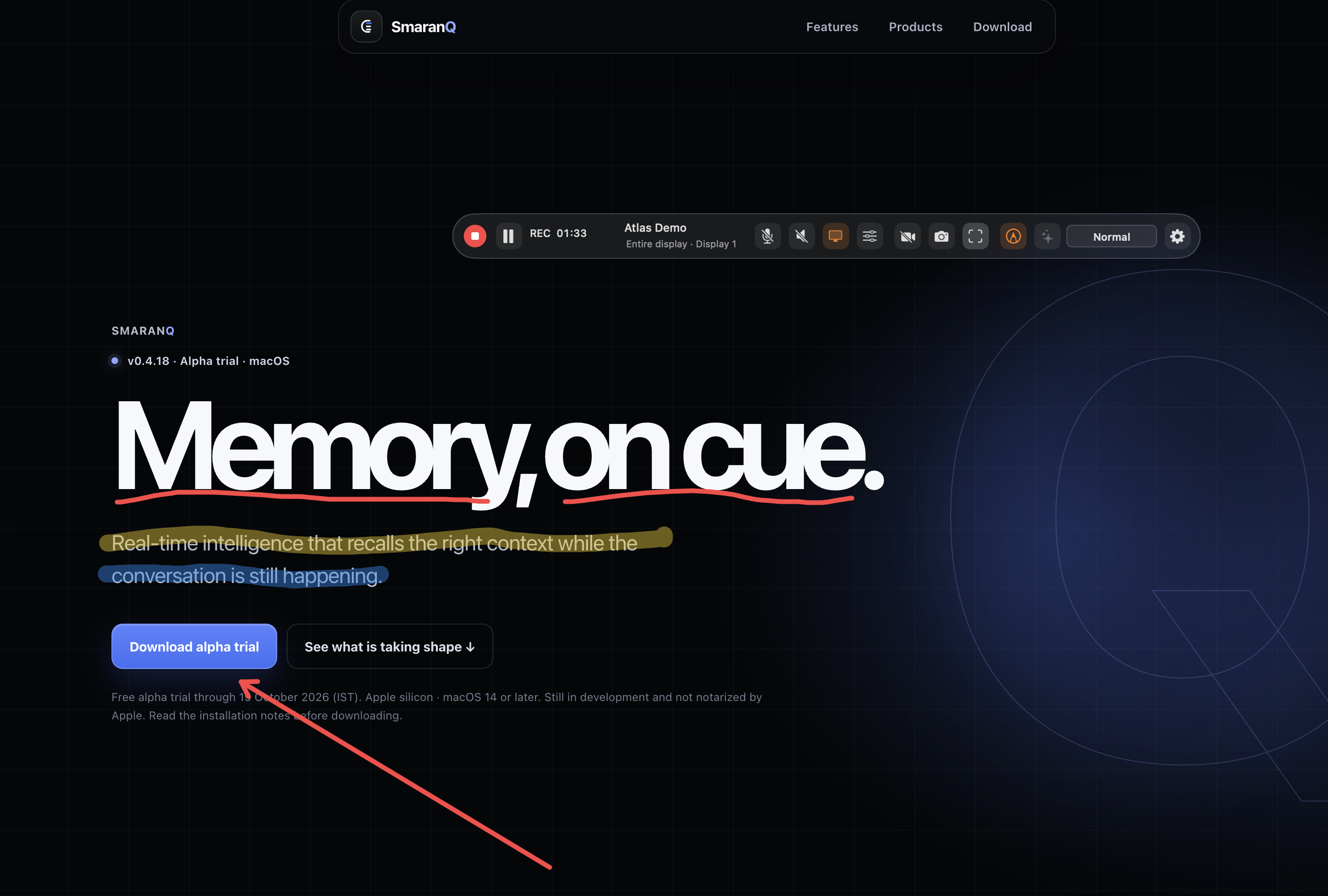
A product-only video will show tool selection, drawing and the saved result. The screenshot shows the visible marks; the full walkthrough is still to come.
Swipe or scroll horizontally. The feature video will follow the screenshots when ready.
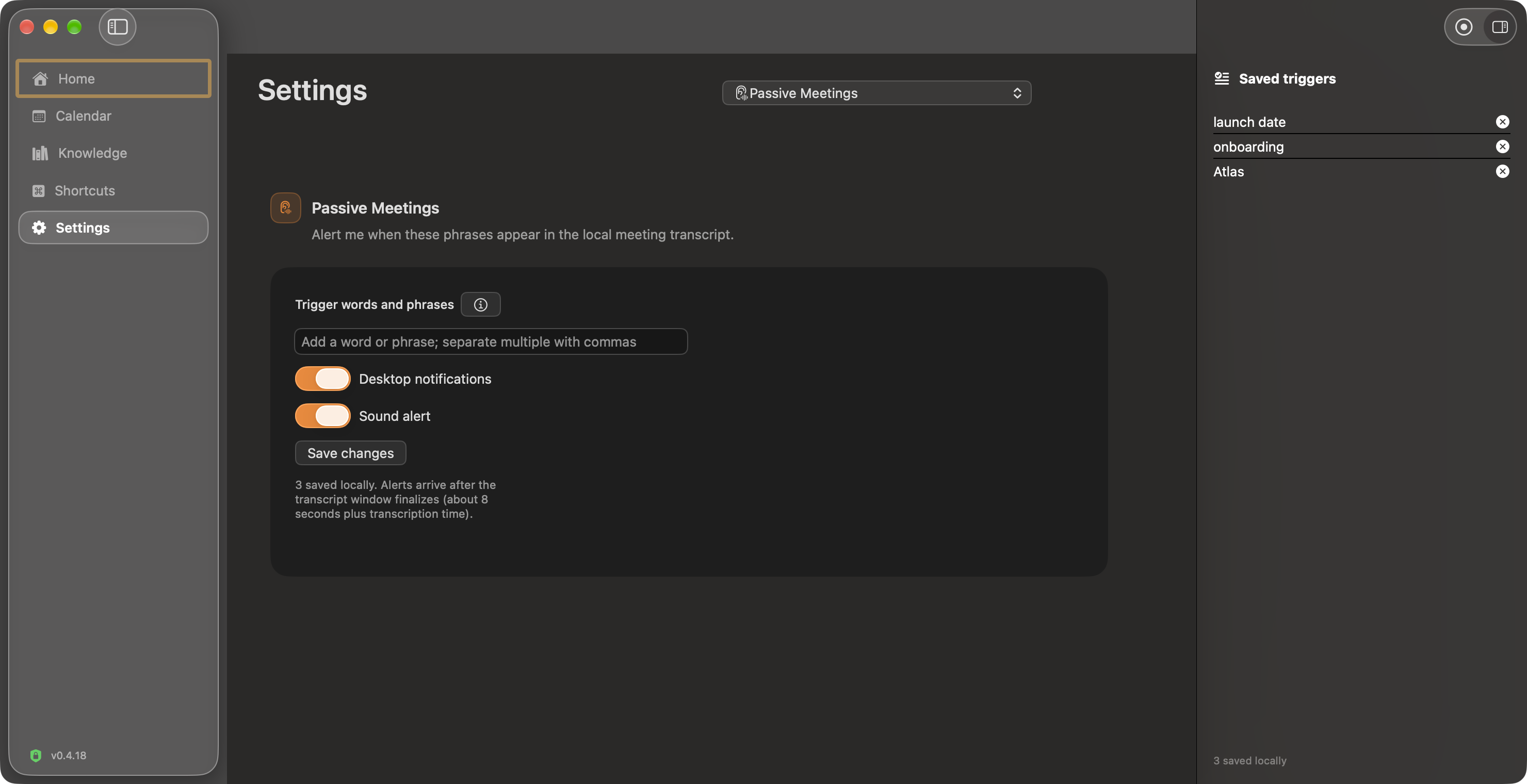
Save words or phrases for local meeting transcript matching, then enable Passive Mode in the session controls with meeting audio and local transcription available. Choose desktop notifications, sound alerts, or both. Matching happens after transcript processing; alerts are not instant.
A product-only recording will appear here when ready.
Swipe or scroll horizontally. With the media strip focused, use the left and right arrow keys.
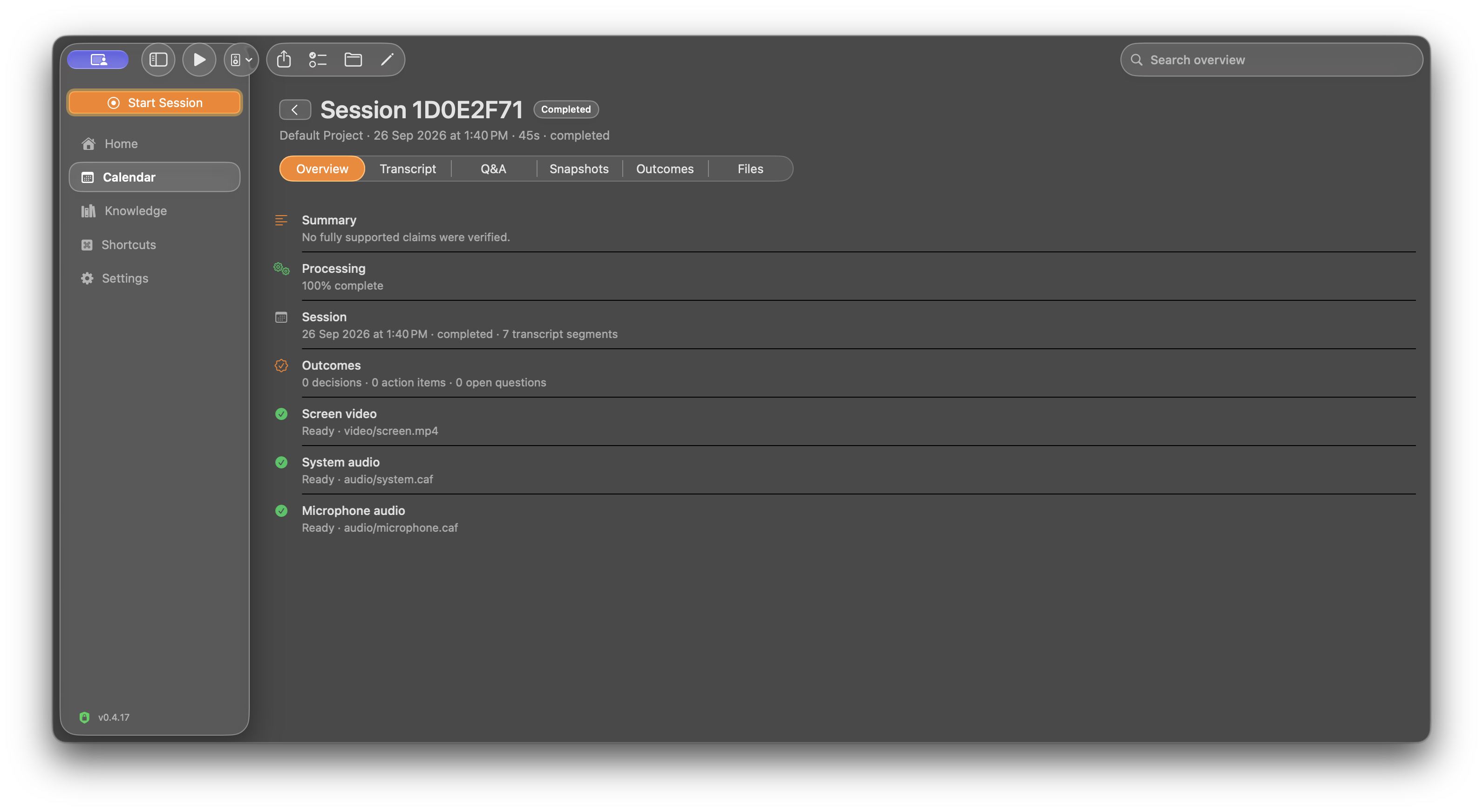
Stop and save, then open the session in Review. The transcript, Q&A, snapshots, outcomes and files have their own tabs, so you can return to the conversation and inspect the material captured along the way.
The demo video will appear here once it is recorded and ready.
Swipe or scroll horizontally. With the media strip focused, use the left and right arrow keys.
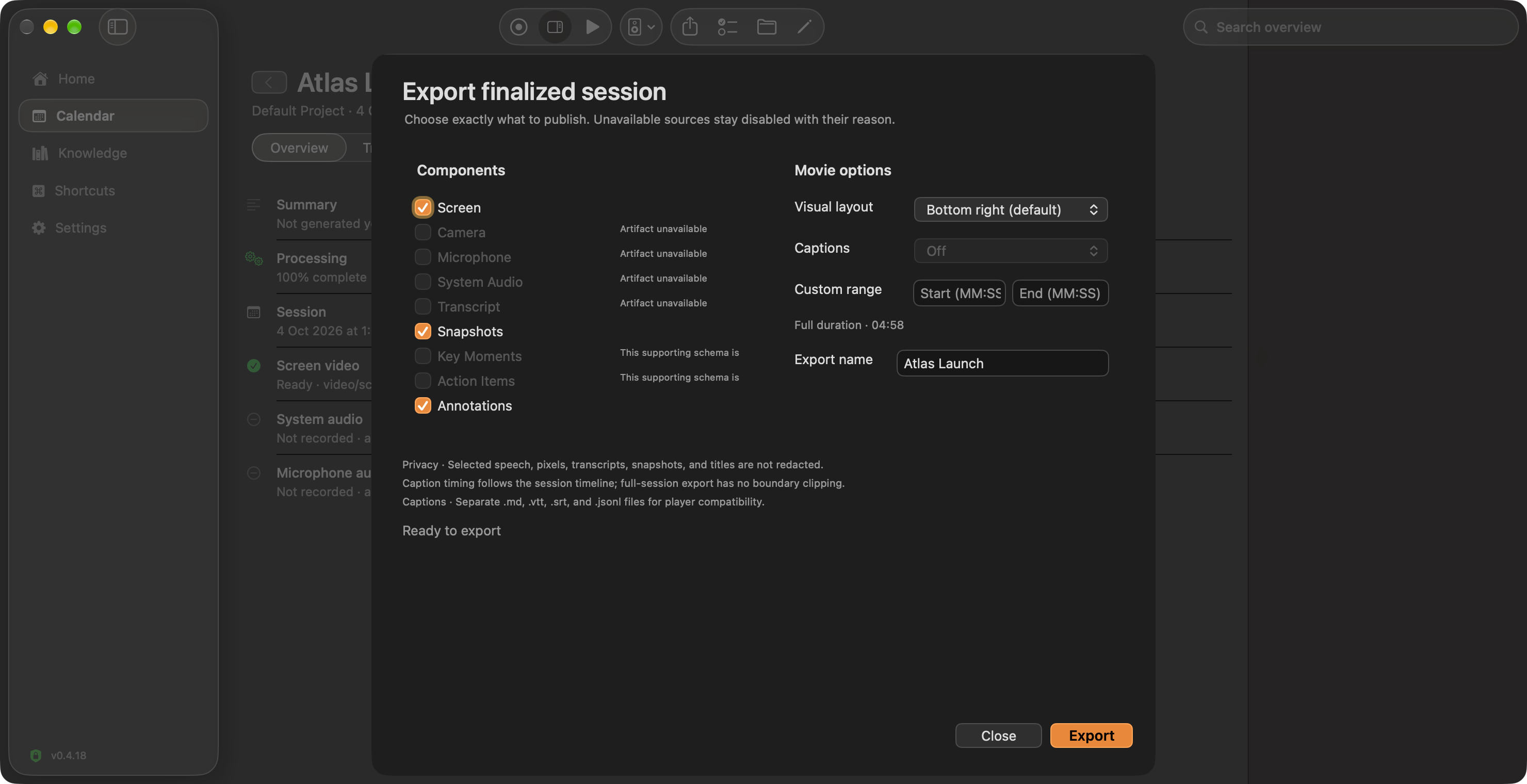
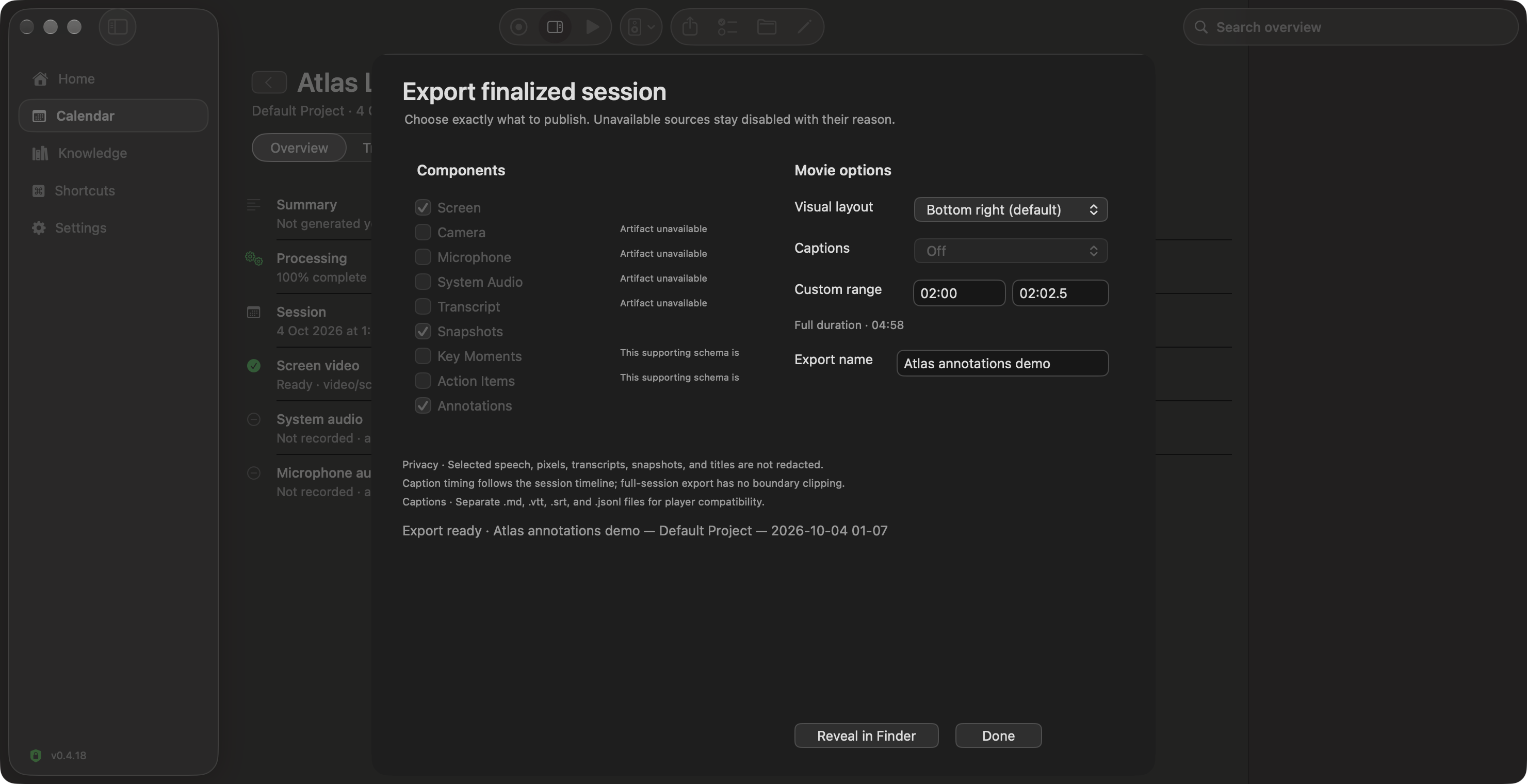
Choose available session components and a custom time range before exporting. This development-preview example successfully exported a 2.5-second screen clip, a saved snapshot and annotation data. Audio, transcript and captions were unavailable in this screen-only session; their export is not demonstrated here.
A product-only recording will show selection, completion and reopening the resulting files when ready.
Swipe or scroll horizontally. With the media strip focused, use the left and right arrow keys.
Configure keyboard shortcuts for session controls, Smart Snip, annotations and the intelligence HUD. Reach the tools you need while the meeting stays in focus.
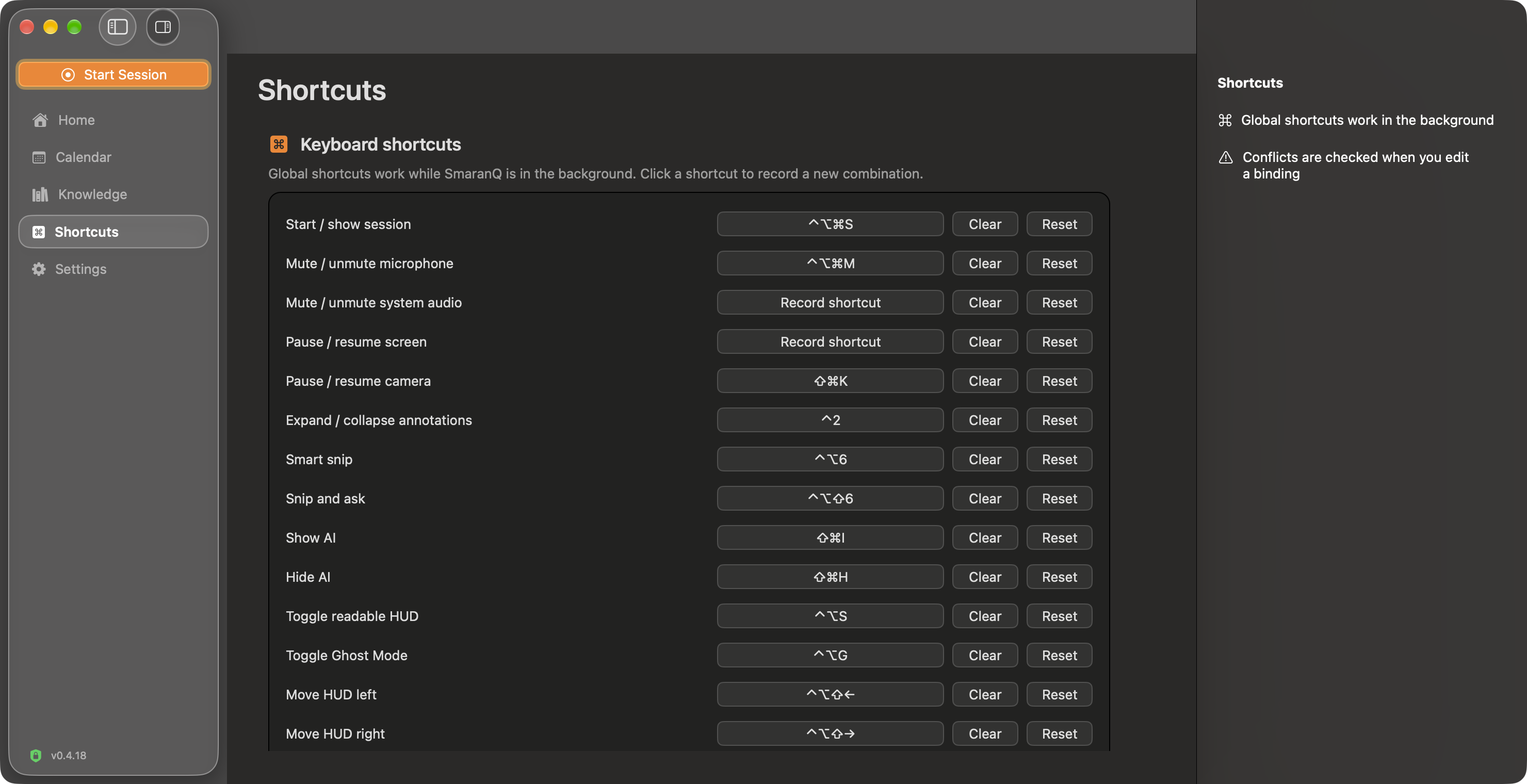
The demo video will appear here once it is recorded and ready.
Swipe or scroll horizontally to explore this feature.
Monitor finalized local system-audio transcript for configured keywords and questions, then surface an alert without sending that transcript to a hosted service. Matching is session-scoped and debounced to avoid repeated noise.
Detected questions can be prefetched so Q can surface a concise answer faster, while still respecting session, privacy, provider, and cancellation controls.
Microphone and system-audio capture feed local Whisper transcription. Recording and transcript persistence continue even when no external model provider is configured.
Start a session with individual sources enabled or disabled, then change supported sources without restarting. Device selection and capture scope are exposed in the live session controls.
Recorded audio can target the full system mix or a selected running application independently of visual capture, with the chosen scope persisted with the session.
Optional triggers can snapshot periodically, when the frontmost app changes, or when Passive Mode detects a question. All automatic triggers ship off by default and respect rate, storage, and low-disk safeguards.
Freeze the captured frame, select a region, save the image, run on-device OCR, and add recognized text directly into the current intelligence index.
Pen, highlighter, arrow, and rectangle annotations are included in SmaranQ recordings and snapshots, while the intelligence HUD, recording controls, settings, and snip selector remain private SmaranQ windows.
Meeting reminders can open the meeting normally or start recording before opening the meeting link. Failed joins roll back the newly started recording instead of leaving a stray session behind.
The native workspace brings meetings and recordings into one agenda, opens recordings into Review, and keeps the global Start Session action available from the sidebar.
Local document chunking and retrieval feed the meeting intelligence layer, with validated answers and citations stored per session. Repository context can be refreshed incrementally.
The global AI-off path still permits local capture and transcription while blocking live answers, diarization, automatic post-call enrichment, hosted ingestion, and sidecar work.
Current trial scope is macOS. Some capabilities remain under supervised pre-release acceptance, and external answer generation depends on the provider you explicitly configure. Local capture, session storage, Whisper transcription, OCR, document chunking, and retrieval run locally.
Knowledge and Shortcuts are captured from v0.4.18. Home and Review show v0.4.17 development captures; appearance and behavior may vary as development continues. The review example shows a test session, not a guarantee of generated summaries or outcomes.
v0.4.18 alpha for Apple silicon Macs running macOS 14 or later. Free to use through 15 October 2026, 11:59 pm IST.
Expect bugs and unfinished behavior. This build is signed with an Apple Development certificate and has not been notarized by Apple. macOS may block its first launch because it cannot verify the developer or check the app for malicious software. Installation and permissions on another Mac have not been fully validated.
Found a bug? Report it to the developer, Raj Kumar. Include your Mac model, macOS version, and steps to reproduce. Remove private meeting content before attaching screenshots or logs.
The trial expires at 16 October 2026, 00:00 IST. After expiry, new recordings and intelligence requests are blocked. You can still stop and save an active recording, and review or export existing recordings. Hosted AI requires a provider configured in Settings; provider charges may apply.
Only override the first-launch warning for a download you trust. Do not bypass a warning that says the app will damage your computer. Read Apple’s guidance on opening apps safely ↗
A macOS screen-share audit tool for answering a deceptively simple question: what is visible on my screen but missing from the recording or share?
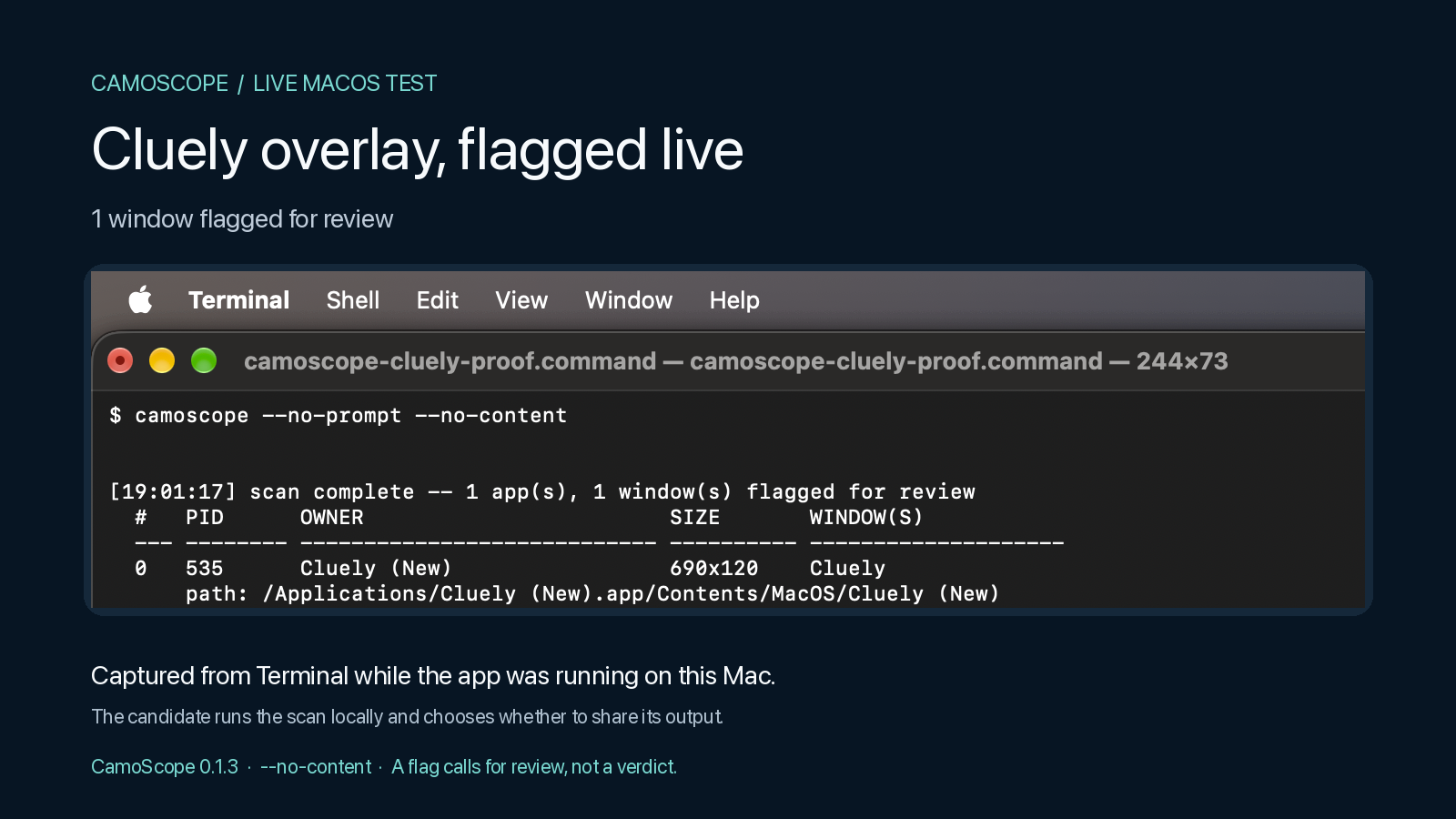
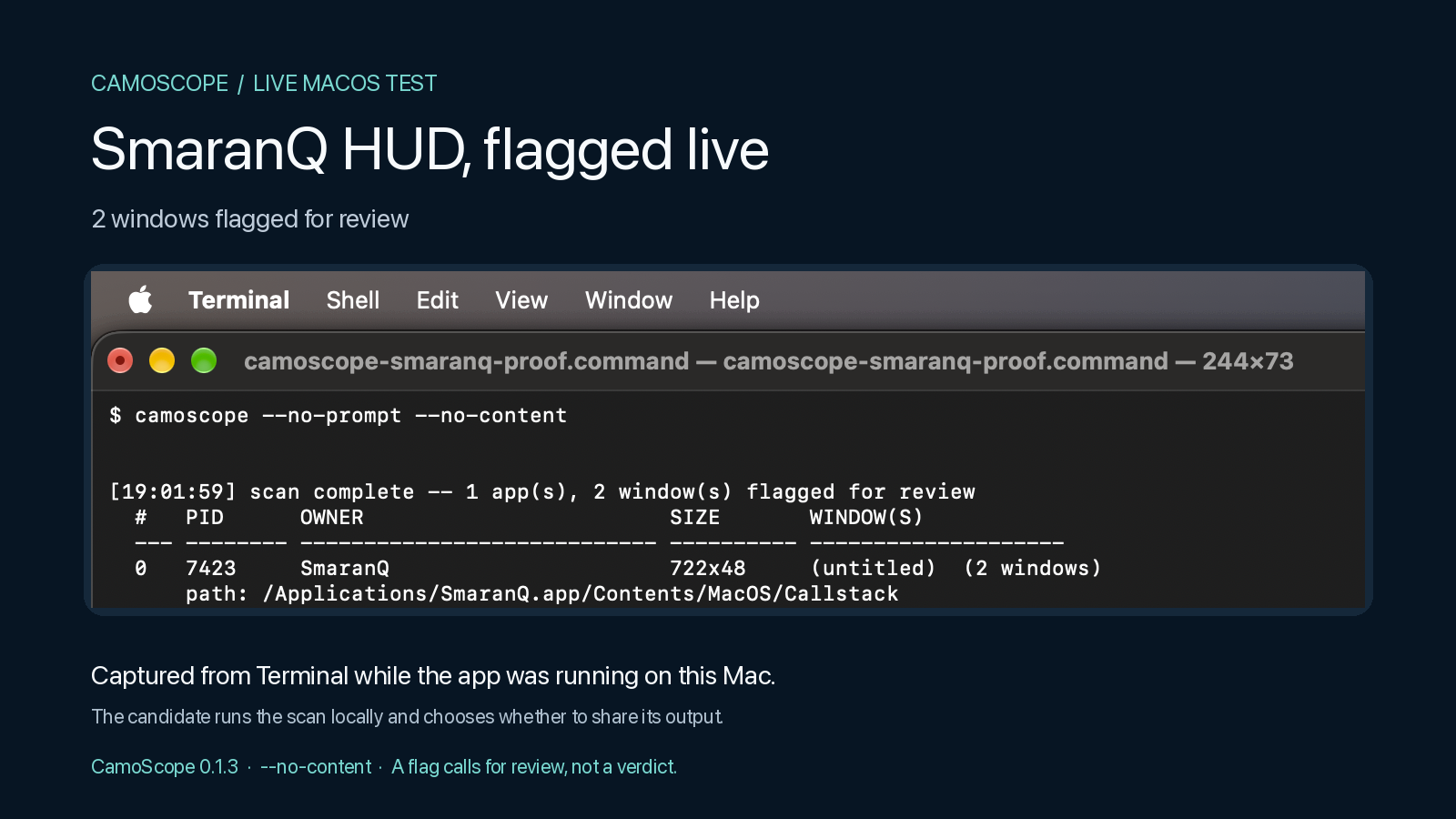
Some macOS windows can opt out of capture. That can be useful for privacy, but it also creates a blind spot: a visible local window may be absent from the shared or recorded output. Camoscope audits the macOS capture state directly so you can see those gaps before or during a call.
Looking for an anti-Cluely or anti-Parakeet check? Camoscope does not depend on a fragile app-name blocklist. If Cluely, Parakeet AI, another interview copilot, or an unknown/renamed process is using a window that macOS marks as excluded from capture, Camoscope is designed to surface that hidden-from-share window and show the real process behind it.
python3 -m pip install camoscope==0.1.3
Public beta for macOS · CPython 3.9–3.14 · Apple silicon and Intel
Reads the WindowServer sharing-state flag used by screen-share and recording tools instead of trusting an app's own claim.
Surfaces the real executable path and code-signing chain so a renamed display process is easier to inspect.
Uses the macOS Accessibility tree as an independent path to inspect live text without unhiding the window.
For a consensual technical interview, the candidate can run Camoscope before or during the session and share the scan output with the interviewer to expose hidden-from-capture AI assistant windows.
The check is based on macOS WindowServer sharing state plus process identity, so it can inspect the same class of hidden overlay even when the app name is changed or the tool is unfamiliar.
With the participant's agreement, run the scan on their Mac, inspect the owning app and compare the result with the actual screen share. These two captures show the same scan workflow in separate live tests.
A recorded walkthrough will appear here when ready.
Swipe or scroll horizontally for the second test and upcoming video.
Genuine Camoscope 0.1.3 Terminal captures with explanatory headings. These are results from the tested setups, not guaranteed detection of any product or version. A flag calls for investigation; it does not prove what a remote participant sees or establish misconduct.
For interviews: Camoscope is intended as a consent-based integrity check on the candidate’s own Mac, not covert remote surveillance. It can expose hidden-from-capture windows and processes, but it cannot prove that no AI is being used elsewhere (for example on a second device or in a normal visible browser window). Accessibility permission is required for content inspection, and macOS remains the consent boundary.
Context Engineer and Senior AI Developer working on RAG systems, agent workflows, context engineering, and production generative AI products.
Bug reports, product feedback, collaboration, or early-access questions.